-
Library and Learning Services Staff Development update – October

-
Note-taking with Caption.Ed
Caption.Ed not only gives you automatic captions on any device, you can also edit and download your captions as a transcript to create time-stamped notes.
Being able to take good lecture notes is important for everyone. For some, note taking comes easy, others may struggle to take meaningful notes whilst remaining engaged in a discussion or classroom activity.

Juggling notetaking with listening to a lecture or engaging with others in a debate, can be very challenging and for some, sensory overload.
Ever thought there must another way?
Edge Hill University offer student support for academic writing and note taking techniques you will use for university level study through UniSkill.
Students now have access to the latest Caption.Ed app to produce captions for all your live online sessions and recorded media.

Improve productivity with your new Caption.Ed account, take meaningful notes that are synced with your transcript.
Caption.Ed mobile app (new)
The new Caption.Ed app means you can capture conversations one-to-one or in small group sessions.
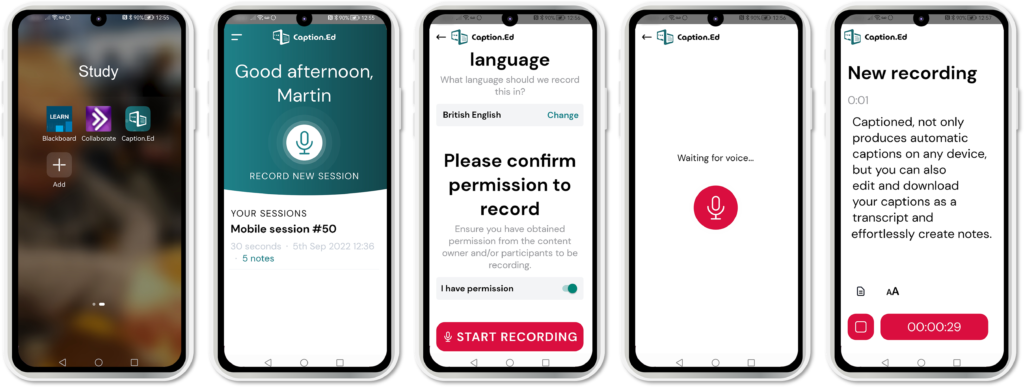
When your session starts you can generate captions in real-time. You can add time stamped notes to the recorded transcript and edited later, giving you more time to focus on the important stuff.
Want to try your free Caption.Ed account, call in to Catalyst and ask at our Helpdesk or by email [email protected].
-
Microsoft Bookings
Do you need a way to manage Personal Tutor appointments with your students? Microsoft Bookings might be the solution for you!
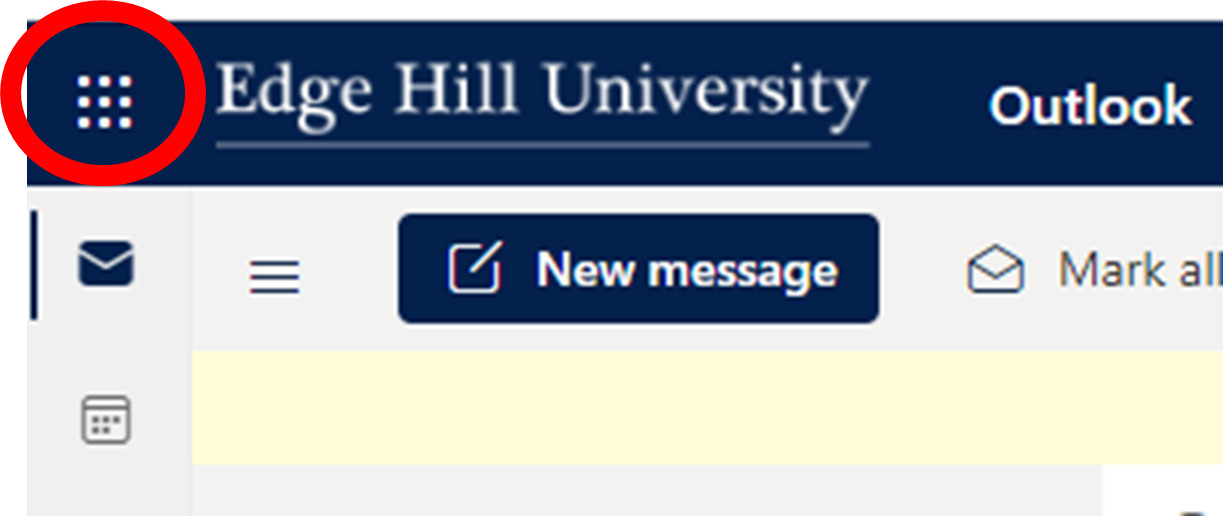
Microsoft Bookings is a Microsoft 365 app that makes scheduling and managing appointments easy. Microsoft Bookings can be accessed through your Microsoft 365 account. Launch the app chooser (top left-hand corner) and search for Bookings.


Follow the prompts to set up your bookings calendar and it will sync with your Teams/Outlook calendar.
Some of the great features include:
- You can set up a shared calendar with colleagues.
- You can add days/hours you want to allow your students to book.
- You can tick a box to make it an online Teams meeting.
- Students will only see the Bookings calendar that you publish online for the services, times and staff you choose.
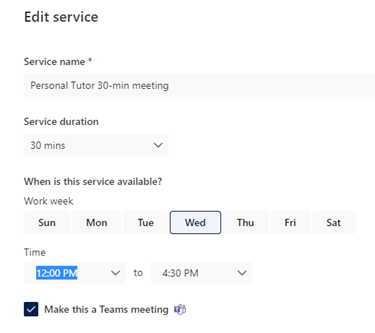
Once you have created the Calendar you will get a link that you can share with students. Once the appointment is booked it’s added to your Outlook calendar and the calendar of the student!
This is a relatively new app that we’ve not really used before so give it a try, we would love your feedback. If it’s successful we can run a training session over the next couple of months.
Our Microsoft Bookings guide will help you get started and contains some FAQ’s.
Visit the Microsoft Bookings page for more information.

Leah Wilson – Learning Technologist