-
Blackboard Ultra Base Navigation is Coming!
As communicated elsewhere, from 14th September, we will all be using new Ultra Base Navigation in Blackboard. Here is a brief summary of the main changes, while further information will be appearing on this blog in the coming weeks.
What is Ultra Base Navigation?
It is a new easy to use fixed navigation menu that lives outside of courses. It includes links to new pages such as the Activity Stream, Institution Page, Calendar, etc. that provides quick access to the most critical information from all your courses. Your courses will not change! They will look and operate exactly as they do now.
What will change for users?
The Courses Page will be the first page you see once logged in. It lists all courses in which the user is enrolled. Users enrolled in many courses may find the list a little unwieldy at first, but there are new course search and filter options. Users should favourite the courses they access most frequently so they appear at the top of their list.
The new Activity Stream identifies upcoming and recent events in the user’s active courses. You can see what’s new in all your courses and jump directly into course activities from the list. See Blackboard help for more information on the Activity Stream.
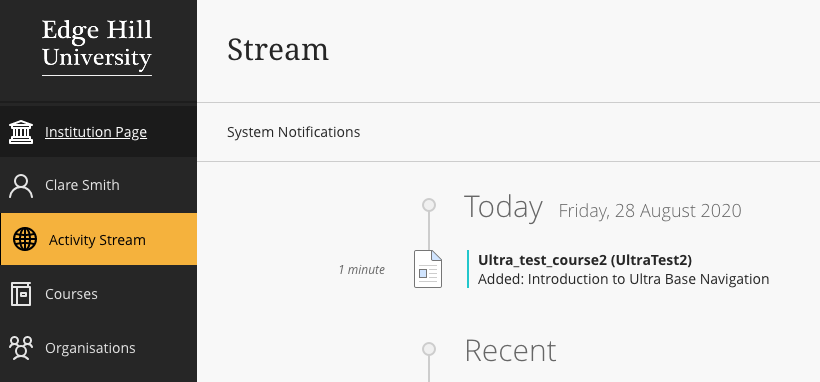
The Activity Stream notifies users of activity in their courses The Navigation Panel is now on the left-hand side of the screen and provides options for accessing individual courses, or viewing information or notifications related to all courses in one location.
There is a new Institution Page, with links to selected university resources or services. This replaces the old tabs across the top of the page.
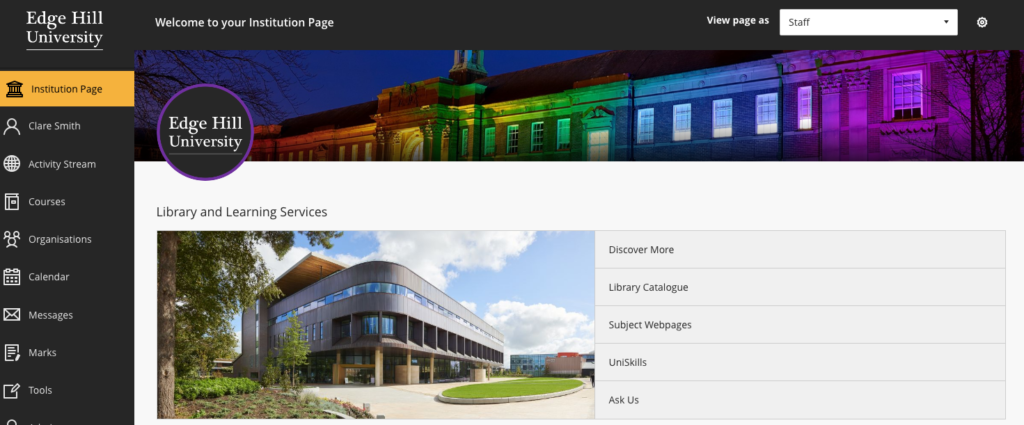
Ultra Base Navigation showing the Institution Page Blackboard actively notifies users about due dates, grades, submissions and more. Your Profile page is where you can more easily manage the Notifications you receive and how. These notices are posted in the Activity Stream page or sent by email.
Watch out for further details, support and guidance in the coming weeks!
-
A changed World.
Immersive technology changing the boundaries.
Before lockdown and the onset of social distancing, classroom teaching was the norm with just a few innovators willing to experiment with technologies that are truly immersive and engaging.

Covid-19 and Social Distancing has meant we all have to think differently and about ways of delivering exciting and engaging taught sessions. When normally we would be rubbing shoulders with each other, on campus or journeying together on a shared learning experience such as a field trip or an on-location workshop. The new norm is working at distance and from home, for many of us.
For every generation there will be something radical that changes the way we view the world around us, like a movement, event, a moment or an advancement, be it technological or otherwise. The Corona Virus is devastating, having a profound effect on all our lives. And yet isolation has, for many, brought people much closer together. Working from home, relying on technology to stay connected with each other, to the weekly ritual of clapping key-worker heroes for keeping us safe and to those keeping the country moving has, for many, been an inspiration.
Arguably, less devastating but by no means less impactful, for me and those of my generation, was the battle for supremacy between Betamax and VHS video cassette “Tape Wars“. We all know how that ended! Being able to record TV programmes, purchasing the latest movie rentals from the corner shop whist at the same time, buying the family groceries for the weekend, was a revelation!
Before video was seen as mainstream in education, the viewer experience was one of, large group viewing events, and live broadcasts. Those of us of a certain age will remember watching educational programmes or significant events on an oversized television, that had to be pushed in to a large assembly hall, on a trolley, by the Head Master or Caretaker, whilst you and your fellow pupils huddled together on a cold wooden floor.

With the advent of video, academics began to add recordings to their taught sessions, taking control of when to show videos that, in some cases, they had recorded themselves, usually on a VHS or Betamax tape cassette. Video recordings could now be linked to the topic and used as important viewing, aimed at supporting learning and following sessions for added context and explanation.
The latest video technology allows us to immerse ourselves in a whole new world and enjoy a completely different viewing experience.
Today’s immersive technology has the potential for delivering new and exciting spheres of learning. Academics are beginning to take advantage and are already deploying content such as 360-degree video into the taught curriculum, as an essential part of the student learning and experience.
Here at Edge Hill University academics are encouraged to explore 360-degree VR technology. Students can learn new skills, be introduced to real-world scenarios and conditions that they wouldn’t otherwise come across, because of, either an impairment or until graduating.
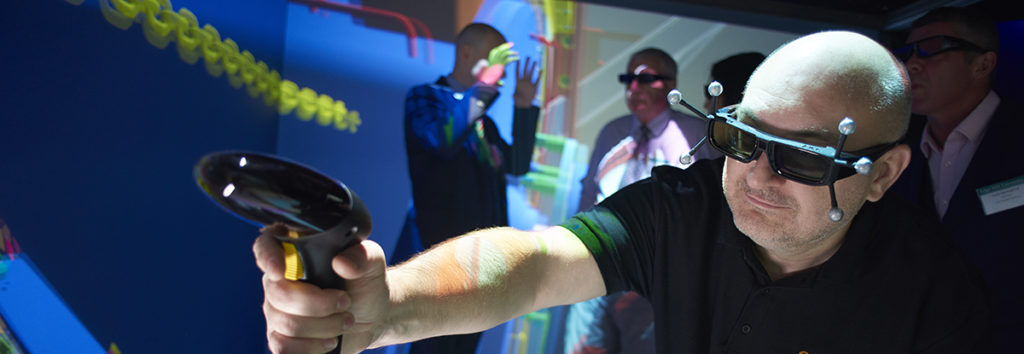
Computer Automated Virtual Environment (CAVE). 360-degree Policing.
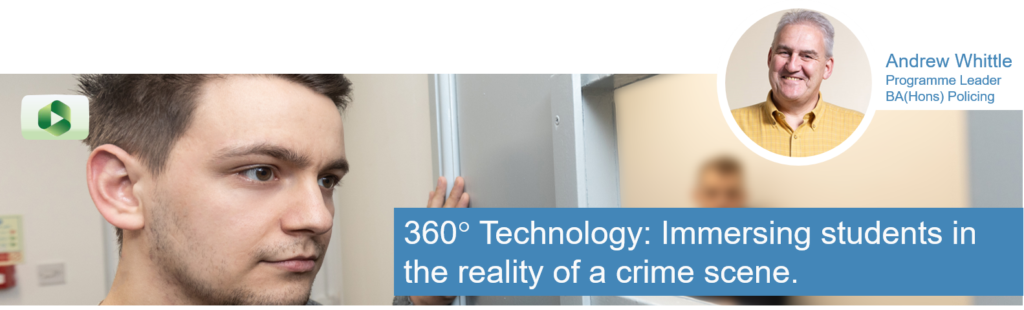
Andrew Whittle (Programme Leader – Policing Degree) talks about how this technology is helping students on his courses come to terms with the complexities of being a Police Officer in today’s modern Police Force. Andrew and his team take students through real-time scenarios, where they are faced with a crime scene, with real challenges and clues for solving the case.
Transcript 
Policing Students investigate the scene of a crime, in this short 360-degree video, set within the grounds of a Victorian detached property, Edge Hill University’s Crime House Training and Simulation Facility. When viewing the video, click and drag the image to view the whole scene, as a student explores every inch for clues to help solve the case (transcript).
360-degree collaboration.
The English, History and Creative Writing Department has partnered up with the country’s oldest repertory theatre, Liverpool’s Playhouse Theatre, formally the Star Music Hall. The Department has worked with the University’s Learning Services to produce several recordings, including a series of 360-degree videos, artifacts and learning resources based in and around the building. Interviews with theatre staff provide a rich knowledge base, from which students can explore and use for research and course work.
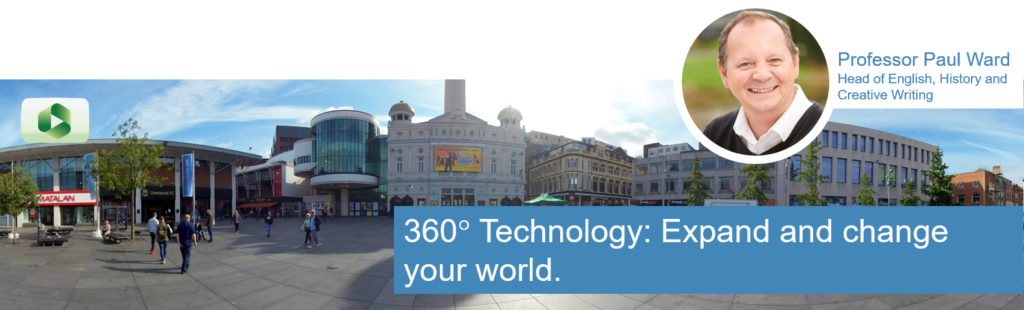
Professor Paul Ward (Head of English, History and Creative Writing), talks about his vision of using technology such as 360-degree video on his programmes. Students studying English, History and Creative Writing, will explore and engage in more innovative ways of working. Paul also explains the importance of internal and external collaborative relationships, such as those his department has with Learning Services and the recent partnership with Liverpool’s Everyman and Playhouse Theatres.
Transcript 
Take a virtual tour of The Liverpool Playhouse Theatre, listen to Allan Williams’ (Liverpool Everyman & Playhouse Theatres, Learning Manager) commentary. Control this short video in every direction as you move through the recording toward and into the Liverpool Playhouse Theatre, situated on the eastern side of Williamson Square, before entering the auditorium views of the stage, stalls, circle and gallery space (transcript).
Inclusion and enrichment
Being able to challenge students with real-life situations and scenarios is increasingly possible. A major benefit of 360-degree video is inclusion, students can now access and experience challenging environments during lectures or from the comfort of their own home, anywhere they have access to the internet and at the click of a button.
360-degree creation can be as simple as using an app on your mobile device or with a standard 360 camera. Edge Hill University’s staff can call upon state of the art resources and expertise (Media Production Team). Developing external, collaborative partnerships, such as those forged by Faculties with local agencies, for example, North West Police Forces, NHS Hospitals Trusts and the creative arts industries, including Liverpool’s Everyman and Playhouse Theatres, contribute to enriching student’s experience and ultimately their learning.
Being able to explore immersive content that allows us to decide where to go, in storytelling isn’t new. However, with the latest video production techniques, it’s possible to move between spaces, access environments that might otherwise be too remote, activate portals (hot-spots) to more information and enter new unexplored realms that help tell the story on a number of levels.
Examples of 360 video used in education:
- Attenborough and the Giant Dinosaur – BBC One.
- Ruby Bridges: 6 Years Old and Desegregating a School.
- One World, Many Stories: Amman, Jordan.
- Re:Imagine Syria: Blending Virtual Reality and Virtual Exchange.
If you would like to learn more about using 360-degree content in teaching, talk to your Learning Technology Development Officer for more information.

Martin Baxter Learning Technology Development Officer
-
Get Ahead of the Game.
2020, kick-start the New Year with several staff development activities and resources, designed to help you make your content accessible.
Learning Services are offering a range of sessions and resources to assist staff with issues raised by Blackboard Ally, from training sessions on making accessible documents, small steps videos that target a range of specific issues and guides that help with more complex document structures and conversions.
Attend a Drop-in Session.

Sessions are being run from 8th Jan to 26th Feb, every Wednesday between 12 p.m. and 2 p.m. Catalyst Oak Room (session on Wed 12th Feb will run from 11-1pm).
No appointment necessary, drop into the Catalyst Oak Room (top floor) & get individual help with making your content accessible. Bring up issues you are having with particular documents and we will help you find a solution following best practice.
Book on a Digital Proficiency Staff Development Session.

Improve your ICT skills with software that you use frequently, sessions such as ‘PowerPoint: Get Creative with Presentations’ and ‘Microsoft Word: Making Documents Accessible’ sessions. These sessions are vital in making presentations and documents more accessible and inclusive to all users.
View Small Steps Videos.

Learning Services are producing a series of short how-to videos for the most common accessibility issues found in content uploaded to Blackboard Courses. All videos will be available by February and will walk you through a step by step approach to resolving issues such as; adding alt text to an image, using Header Styles in Word, saving a Word file to an accessible PDF and linking to 3rd party resources.
How-to Videos:
- Add Alternative Text to images in Word and PowerPoint – Office 365 (transcript).
- Third-party Content and Digitised Versions in Learning Edge (transcript).
- Using Header Styles in MS Word for improved structure – Office 365 (transcript).
- Saving a Word file to an Accessible PDF – Office 365 (transcript).
- Avoiding Poor Colour Combinations and Contrast (transcript).
Access Good Practice User Guides.

Create documents that are usable to more people, follow some key tips to make PDF files and their alternative versions accessible for all your students.
- Creating a PDF from Microsoft Word and PowerPoint.
- Adding Document Structure to a PDF File (Adobe Acrobat).
- Tags and Reading (Adobe Acrobat).
- Accessibility Check (Adobe Acrobat).

LinkedIn Learning – Creating Accessible PDFs
LinkedIn Learning specifically focuses on professional development. Industry experts provide insights and guidance to you on what you should know about in the production and remediation of PDFs. ‘Creating Accessible PDFs’ course is broken down into six key areas:
- Understanding Accessibility.
- Accessibility in PDF Files.
- Make an existing PDF File Accessible.
- Create an Accessible PDF from Word.
- Create an Accessible PDF File from PowerPoint and Excel.
- Create an Accessible PDF File from Adobe InDesign.
Each category is delivered in short manageable chunks, between 2 – 12 minutes sections, this means you can dip in and out of your learning as and when it suits you.

Want to know more about accessibility and what the new legislation means for your modules in Blackboard?

Contact your Learning Technology Development Officer: AskLTD or Tel. 7755