Highlights of the Technology Road Show & Mobile Clinic

Last month Learning Services and IT Services combined forces to bring the first ever Technology Road Show & Mobile Clinic to the University.  The event was hosted in the Hub, to which students and staff took the opportunity to see demonstrations of Edge Hill mobile applications, and to speak to us and obtain technical support for mobile devices (phones, tablets and laptops).

Road Show 2013

Application wise, we showcased all of the institutions’ mobile apps and online resources, and when we demonstrated our very own Edge Hill Central we found that many students didn’t know this was available, or what it could do.  The combination of having Blackboard Mobile Learn, Email and library access all in one place was quite a surprise to users – prompting them to download the app on the spot!

image

In terms of the hardware issues we encountered, practically all the concerns were focussed on Wi-Fi connectivity.  Of course, with digital natives becoming the majority on campus and in the classroom, it’s vital we ensure your internet enabled devices are connected.  So to clarify and resolve this issue, please ensure you connect to eduroam.  Like the users we encountered, you’ll find that if you use EdgeNet it will repeatedly ask you to authenticate on a daily basis and even building to building. The new, and much easier way for continuous access is eduroam.

Eduroam will ensure you won’t have to enter your account details on a daily basis, your connection will roam around campus with you and will be active until you change/reset your network login password.  Make sure you connect your device to eduroam today. 

Mobile Flyer

For more information please take a look at the IT Services Wi-Fi pages.

Overall the Technology Road Show was a success and we’re pretty sure everyone we spoke to took something out of the event. If you missed out on the Road Show and have a question for us, please do get in touch on the following address: ltdsupport@edgehill.ac.uk


Mark Wilcock

Learning Technology Development Officer 

Student Top Tips: Mobile Learn & Learning Edge customisation!

Over the past month in LTD we have focused our attention to the eLearning survey in relation to the main student queries related to the Learning Edge.  This has given me the opportunity to assemble some information on certain areas of feedback received.  Two of the main areas that caught my attention was the request for a mobile app to gain access to Blackboard and consideration for more options to customise the way you can view your course list within Learning Edge.

One of the main questions that kept reappearing from students was the request for “a tablet/smartphone app to access Learning Edge”?

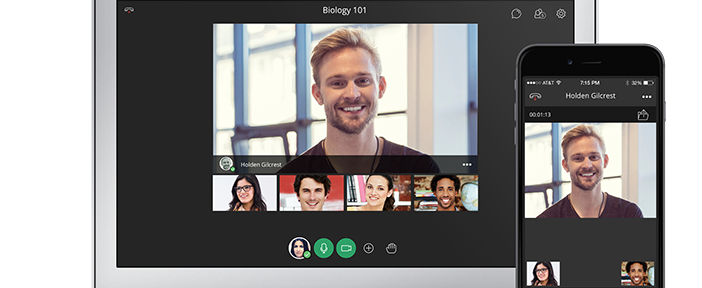
This is something that has been available since the beginning of this academic year. The app is called Blackboard Mobile Learn and can be downloaded from your device’s (iPhone, iPod, iPad, Blackberry, Android) local app store.

Learning Edge isn’t optimised for mobile use, so using the Mobile Learn app will display Blackboard in a different but more mobile-friendly way; the picture below shows how it looks on different devices:


The app will give you access to your Blackboard course dashboard, announcements, assignments, grades, discussions and handouts. You’ll also be able to contribute to and comment on discussion and blog posts, and create new discussion threads. You can even set your notifications within Blackboard to be sent to your mobile app. This means anytime there is activity within your course (for example a new announcement or grade released) you’ll be notified, meaning you’ll always be up to date with what’s happening in your course.

You can find installation guides and helpful FAQs about Mobile Learn here -

Apple users click here
Android users click here
Blackberry users click here
Setting your Mobile Learn course notifications


Learning Edge Customisation?

Another question that you’ve asked is “can I manage the display of courses listed on the ‘My Institution’ tab?” 

Yes, you can edit the display of courses and other information to make your view a lot clearer.

Just select the small ‘cog’ icon in the top right hand corner of the ‘My Courses’ module and select or deselect the options you wish to see/not see.

If you don’t want to edit the way your course list are displayed but you want to find your course a lot quicker you could even just try searching for the course. Hold down the ‘Ctrl’ key and press ‘F’ on your keyboard and you will get a ‘Find’ box pop up within your browser. Type the module code or part of the course ID and select ‘Next’ to find that text on the current page.
For further information on customisation, please refer to this guide LTD quick guide.


Mark Wilcock

Learning Technologist